
Meta Conversions API
Send server-side conversion events from SmartTask to Meta using the Conversion API for better attribution and ad optimization.


Why use Meta Conversion API?
A lead from Facebook or Instagram is just the start. The real value comes from tracking how that lead moves through your sales pipeline. Browser-based tracking often fails to capture these actions due to privacy restrictions, cookie limitations, and ad blockers. This often leaves you with incomplete data and missed insights.
Meta’s Conversion API (CAPI) bridges this gap by securely sending key CRM events directly to Meta, ensuring accurate tracking and better ad optimization based on real sales outcomes.
By using Conversion API, you can:
- Improve attribution accuracy between ads and CRM activity
- Reduce signal loss caused by browser restrictions and ad blockers
- Enable smarter ad optimization based on actual sales-funnel progress
High-level flow
The Meta Lead Forms integration provides lead data, while SmartTask tracks how each lead progresses through your sales funnel and reports meaningful conversion events back to Meta.
- User submits Meta Lead Form → Meta provides a lead_id (and form data).
- SmartTask receives the lead and creates a Task in the mapped Project.
- When a Task’s Deal Stage custom field changes (to a configured value), SmartTask sends a Conversion API event to the connected Meta Pixel, including lead_id and event details.
Prerequisites
- SmartTask Project containing the required custom fields:
- Lead ID (Text Custom Field),
- Deal Stage (Select Custom field) - Meta Lead Forms integration is active.
- SmartTask must be receiving and storing Lead IDs and form data in the selected Project.
- If you haven’t connected forms yet, follow the Meta Forms setup before enabling Conversion API. - Business Manager admin or sufficient permissions on the Ad Account, Page, and Pixel to generate tokens and grant access.
- Meta Ads Account and Meta Pixel.
- The Pixel must belong to the same Business Manager as the Ad Account.
- Pixel must be a CRM pixel type.
Configure Conversion API in SmartTask
With your Meta Lead Forms connected, you’re ready to enable Conversion API in SmartTask. Follow the steps below to get started.
Step 1: Create new configuration for Conversion API
- In SmartTask, navigate to Apps and Integrations from the left sidebar.
- Select Meta Conversion API.
- Click Add Configuration.
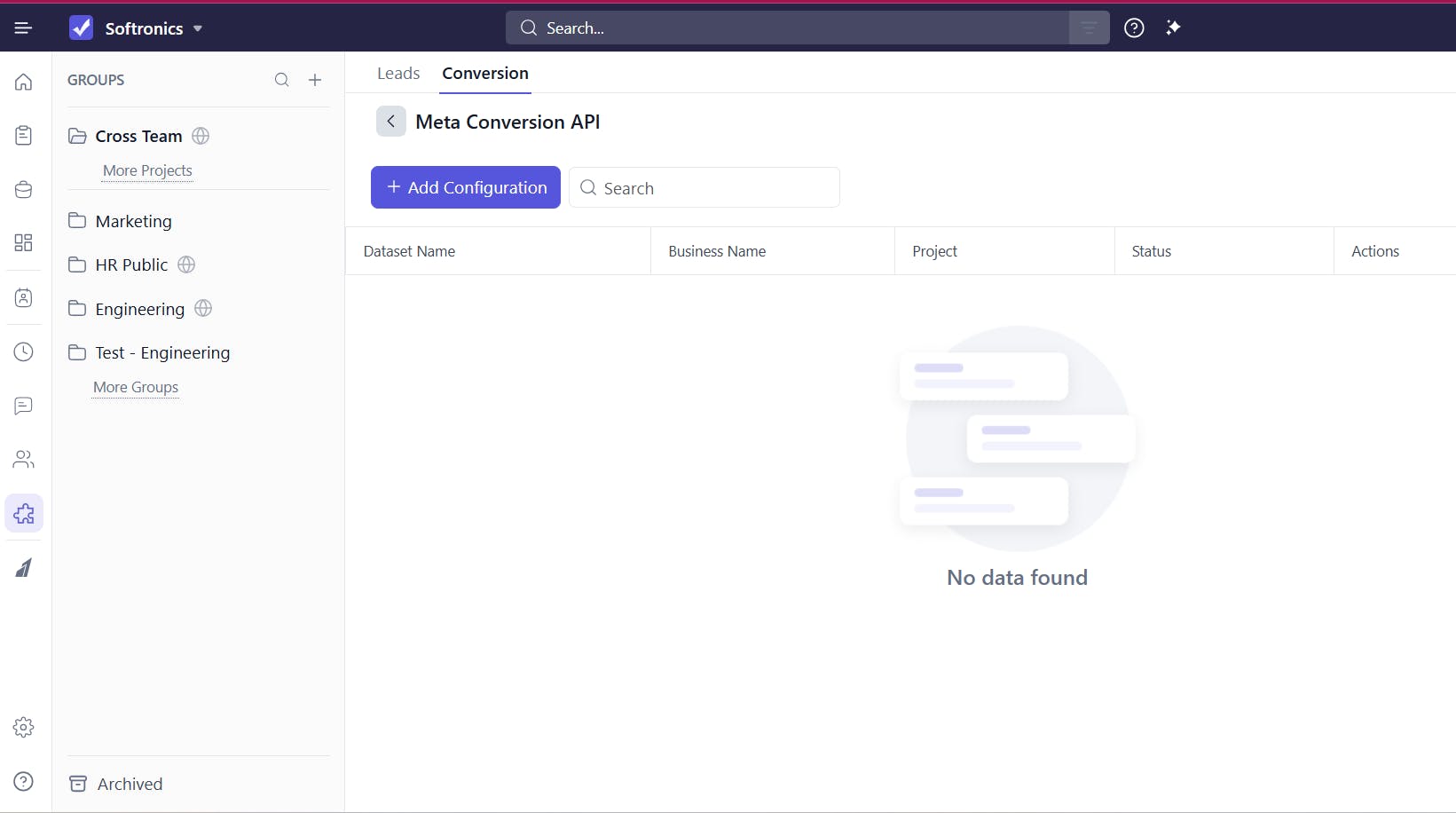
Step 2: Connect your Facebook Business account
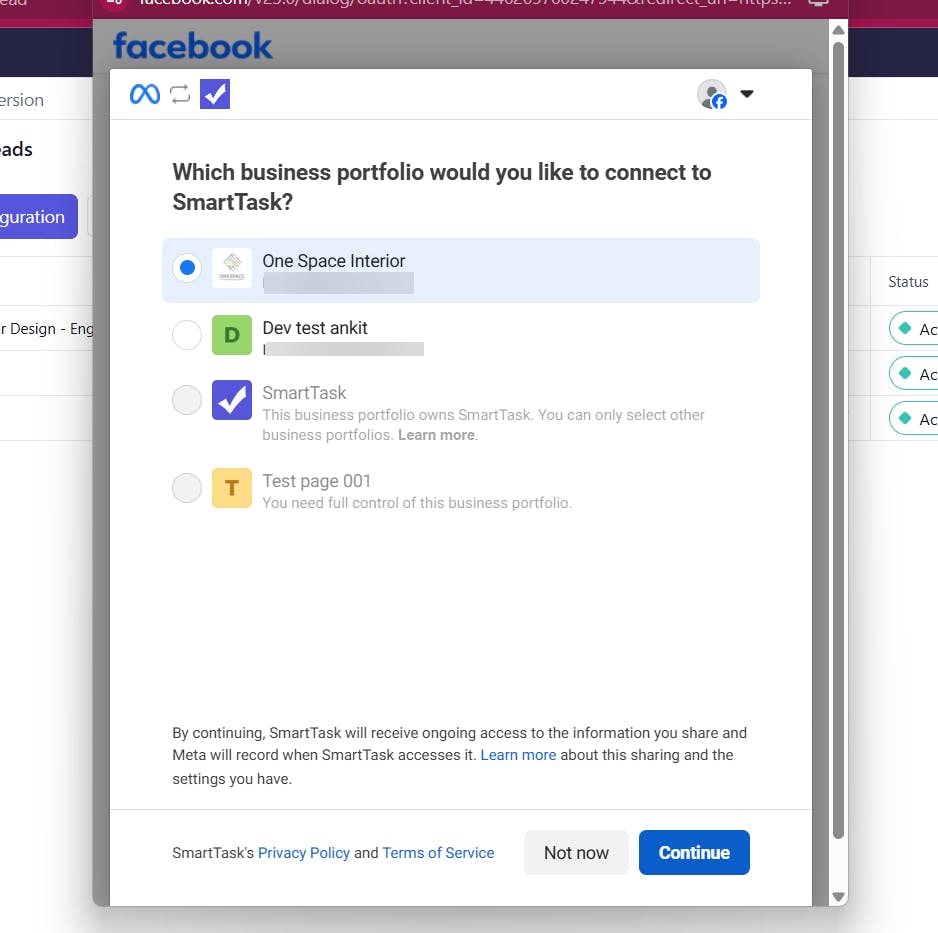
- Log into your Facebook Business account. If already Logged in then select the Business account you want to use. Same as Meta Lead Form
- Select Pages, Ad Account and Pixel you want to use.
- Click on Save. It will open a Configuration Modal
Step 3: Configure the Integration
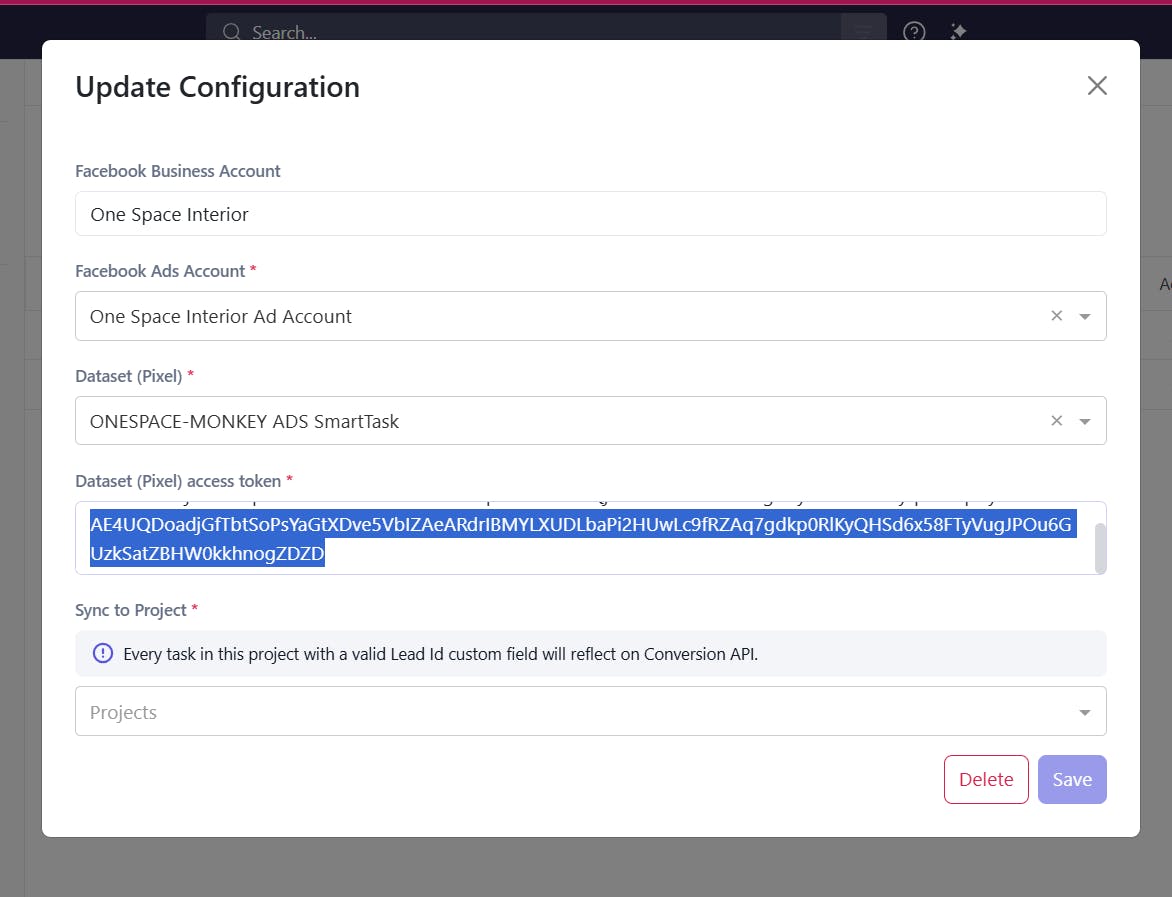
In the configuration modal
- Select Ad Account
- Select Pixel that will receive the server events.
- Go to Meta Events Manager → Pixel → Settings → Generate Access Token. Copy this Access token
- Paste the Pixel Access Token into the SmartTask configuration modal’s Pixel / Dataset Access Token field.
Step 4: Select SmartTask Project & Field Mappings
- Choose the SmartTask Project that receives Meta Lead Form submissions.
- Map the following fields:
- Lead ID → SmartTask Lead ID custom field
- Deal Stage → SmartTask Deal Stage custom field
Note: Only the custom fields that already exist in the project are available for mapping in Task Custom Fields.
Step 5: Save & Activate
- Review your field mapping.
- Click Save.
Your connection is now active!
Step 6: Configure Sales Funnel
After connecting to the Conversions API, go to the Overview tab of your dataset in Events Manager for integration status. Configure your Deal stage events to your meta sales funnel.
When SmartTask sends Conversion API events?
SmartTask sends a Conversion API event for following updates:
- Meta Lead form integration creates a Task containing a valid Lead ID
- The mapped Deal Stage field is updated for a Task containing a valid Lead ID
When triggered, SmartTask sends a server-side event to your Pixel that includes the lead_id along with key context such as deal stage, timestamp, and contact identifiers, allowing Meta to accurately attribute the event to ad interactions.
Testing & verification
To verify your setup:
- Test Events / Events Manager: Use Meta Events Manager to monitor incoming server events and run test events. Verify that events appear and that lead_id is present. Facebook Developers
- Confirm mapping and triggers: Update a Task’s Deal Stage in SmartTask with a valid Lead ID and verify that the corresponding event appears in Meta Events Manager.
- Check attribution: In Events Manager you can inspect matched identifiers and see whether Meta successfully matched the event to ad interactions.
Troubleshooting checklist
If events are not appearing or not attributed:
- Permissions: Verify Business Manager / Pixel / Ad Account access.
- Access Token: Confirm the Pixel Access Token is correct and has not expired. Facebook Developers
- Lead ID presence: Ensure Tasks have a valid lead_id (captured from Meta Lead Forms). Facebook Developers
- Trigger condition: Confirm Deal Stage changes are taking place (SmartTask sends events on updates).
- Pixel status: Verify the Pixel is active and not paused.
Confirm your permissions in Facebook Business Manager
Facebook allows you to configure permissions on your page, business manager. These permissions are also required to create Facebook ad campaigns for a specific page.
To sync leads and send conversion events, ensure:
- The connected Facebook user is an admin for both the Page and Ad Account.
- The Page and Ad Account belong to the same Business Manager.
- The user has Leads Access for the Page.
Need help?
If you have any issues connecting Meta forms or configuring mappings, feel free to reach out to SmartTask support.
Plan your resources smarter with one scalable client delivery management system.
Try it Live - It's FREE

