
Templates
Digital Asset Management
The Digital Asset Management Template ensures that all digital assets are well-organized, easy to locate, and compliant with usage rules. It supports efficient collaboration and effective asset management across teams.
Use TemplateCategories
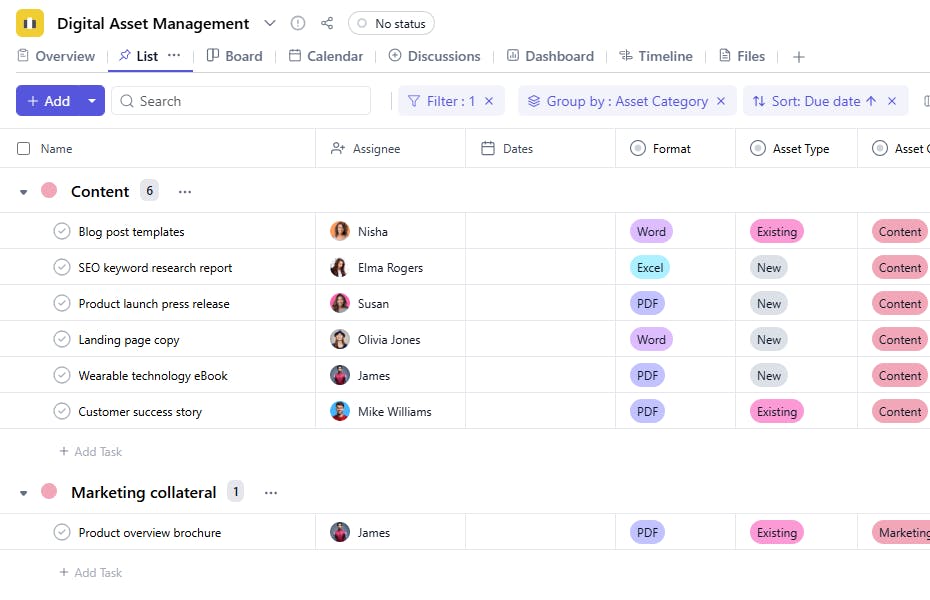
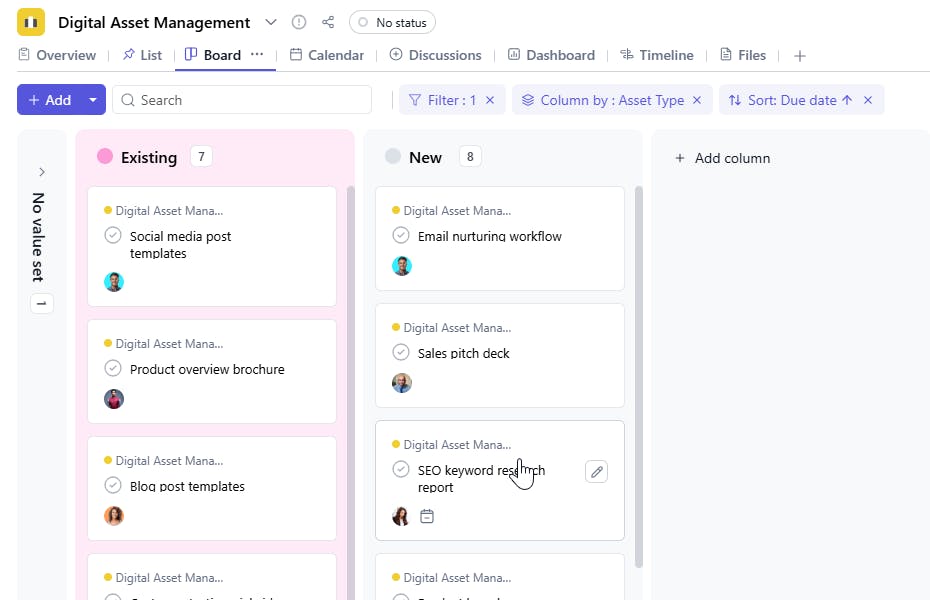
What is a Digital Asset Management Template?
A Digital Asset Management Template provides a structured framework for organizing and tracking digital assets. It allows you to categorize assets, track their usage, and monitor updates, ensuring proper management and compliance with usage guidelines.
Here’s a closer look at its key features:
Digital Asset Management Template: Key Features
- Centralized Asset Storage: Store and categorize all your digital assets in one place, making it easy to locate and manage files.
- Version Control: Keep track of asset versions, ensuring that you always use the latest or appropriate version for your needs.
- Seamless Collaboration: Allow team members to review, share, and approve assets, maintaining alignment across departments.
- Customizable Workflow: Tailor the template to match your asset review, approval, and distribution process, from content creation to final use.
How to Use the Digital Asset Management Template?
Here’s a step-by-step guide to using SmartTask’s Digital Asset Management Template:
- Create a New Project: Log into SmartTask, click "New Project," and select the Digital Asset Management template.
- Customize the Template: Modify the template according to your digital asset categories, approval workflows, and team roles.
- Upload Assets: Begin by uploading digital files (images, videos, audio, documents) into the asset library, categorized by type or project.
- Organize Workflow: Set up workflows to manage asset review stages, such as "In Review," "Approved," or "Ready for Distribution."
- Collaborate and Approve: Share assets with your team for feedback and approval using SmartTask’s communication tools.
- Track and Distribute: Once assets are approved, track their usage and ensure proper distribution across relevant channels.
Custom Fields for Enhanced Organization
This Digital Asset Management Template includes the following fields for better asset tracking and management:
- Requested Date: The date the asset was requested.
- Asset Category: The category the asset belongs to (e.g., Logo, Document).
- Asset Type: The type of asset (e.g., Image, Video, Audio).
- Format: The file format of the asset (e.g., PNG, MP4, PDF).
- Usage Restriction: Any limitations on the use of the asset (e.g., Only for Social Media).
- Last Update Date: The most recent date the asset was updated.
Additional Customization Options
Here are a few ways to further customize the Digital Asset Management Template:
- Version History: Track previous versions of assets and updates.
- Approval Workflow: Add approval steps to ensure assets are reviewed before use.
- Asset Priority: Add a field for prioritizing assets based on importance.
- Tags: Add tags to assets for easy searching and filtering (e.g., Seasonal, Campaign).
- File Attachments: Attach the actual asset file or reference link for quick access.


